
Check Point ElasticXL and VSNext: Setup and Configuration Guide
As organizations scale their security infrastructure, the need for high-performance, flexible firewall solutions becomes critical. Check Point’s ElasticXL and VSNext technologies provide exactly that—simplifying cluster management while enabling multiple virtual firewalls on a single platform. In this guide, I’ll walk you through the concepts and practical setup of these powerful technologies.
Understanding the Technologies
What is ElasticXL?
ElasticXL is Check Point’s clustering technology introduced in version R82, designed to simplify the creation and management of high-performance firewall clusters. It can be seen as an evolution of the traditional ClusterXL, providing:
- Simplified cluster deployment and management
- Enhanced scalability for high-performance environments
- Active/Active or Active/Standby configurations
- Seamless addition of cluster members
What is VSNext?
VSNext is an enhanced version of VSX (Virtual System Extension), Check Point’s technology for virtualizing security gateways. It allows you to run multiple, independent virtual firewalls on a single physical appliance or cluster, providing:
- Multi-tenancy support
- Resource optimization
- Centralized management of multiple virtual firewalls
- Improved performance over legacy VSX
Architecture Overview
The typical deployment consists of two sites configured in a cluster, providing high availability and load distribution:
Cluster Configuration Options
Active/Active Cluster
 Figure 1: Active/Active Cluster Configuration
- Both firewalls process traffic simultaneously
- Load is distributed across both members
- Maximum throughput and resource utilization
- Ideal for high-traffic environments
Active/Standby Cluster
 Figure 2: Active/Standby Cluster Configuration
- One firewall actively processes traffic
- Second firewall remains on standby
- Automatic failover in case of primary failure
- Simplified troubleshooting
Network Design
The architecture includes:
- Management Network: 192.168.166.0/27
- Site 1: 192.168.166.73/27
- Site 2: 192.168.166.76/27
- Cluster VIP: 192.168.166.81/27
- Sync Network: Dedicated synchronization between cluster members
- DNS Servers: 172.26.128.65, 172.26.128.67
- Default Gateway: 192.168.166.65
Virtual System Configuration:
- Virtual System: VS-USER
- Bond Interface: BO.99 (192.168.99.1/24)
- Port-Channel: Po99/Po98
- Physical Interfaces: Eth1-08, Eth4
Step-by-Step Setup Guide
Prerequisites
- Two Check Point appliances (physical or virtual)
- Check Point R82 or later
- Valid Check Point licenses
- Network connectivity between sites
- Management station with SmartConsole
Basic Setup Process
Step 1: Upgrade to R82
Ensure both firewalls are running Check Point R82 or later. This version introduced ElasticXL support.
Step 2: Configure Site 1 Firewall as Security Management Server (SMO)
Set up the first firewall as your management server. This will control cluster configuration and policy distribution.
Basic Configuration:
set interface Mgmt ipv4-address 192.168.166.73 mask-length 27
set static-route default nexthop gateway address 192.168.166.65 on
Firewall 1 Details:
- IP: 192.168.166.73/27
- Gateway: 192.168.166.65
- DNS: 172.26.128.65, 172.26.128.67
- Hostname: VSX9400-User
- Cluster: ElasticXL
- Virtualization: VSNext
Step 3: Enable ElasticXL and VSNext
On the Security Management Server:
- Access the firewall configuration
- Enable ElasticXL clustering
- Enable VSNext virtualization
- Configure cluster parameters (VIP, sync network, etc.)
Step 4: Configure Switch for Management Interface
Ensure your network switch is properly configured to support the management VLAN:
interface GigabitEthernet8/0/42
  description VSX9400-User Mgmt
  switchport access vlan 664
  switchport mode access
  spanning-tree portfast
end
Step 5: Add Site 2 Firewall to ElasticXL Cluster
Firewall 2 Configuration:
- IP: 192.168.166.76/27
- Gateway: 192.168.166.65
- DNS: 172.26.128.65, 172.26.128.67
Access the second firewall and join it to the cluster created on Site 1:
# On Site 2 firewall, access member context
[Global] User-FW-s01-01:0> m 02_01

# Configure management interface
set interface Mgmt ipv4-address 192.168.166.73 mask-length 27
set static-route default nexthop gateway address 192.168.166.65 on
Step 6: Add Cluster to SmartConsole
- Open Check Point SmartConsole
- Navigate to Gateways & Servers
- Add new cluster object
- Configure cluster members
- Set cluster VIP (192.168.166.81/27)
- Configure synchronization network
Step 7: Configure Virtual Systems
Create your virtual firewall instance (VS-USER):
- Define virtual system name and ID
- Assign physical interfaces to bond (BO.99)
- Configure IP addressing (192.168.99.1/24)
- Set up Port-Channel interfaces (Po99/Po98)
- Map physical interfaces (Eth1-08, Eth4)
Step 8: Push Initial Policy
- Create a basic security policy in SmartConsole
- Assign policy to the cluster
- Install policy to both cluster members
- Verify policy installation
Interface Configuration Details
Active/Active Configuration
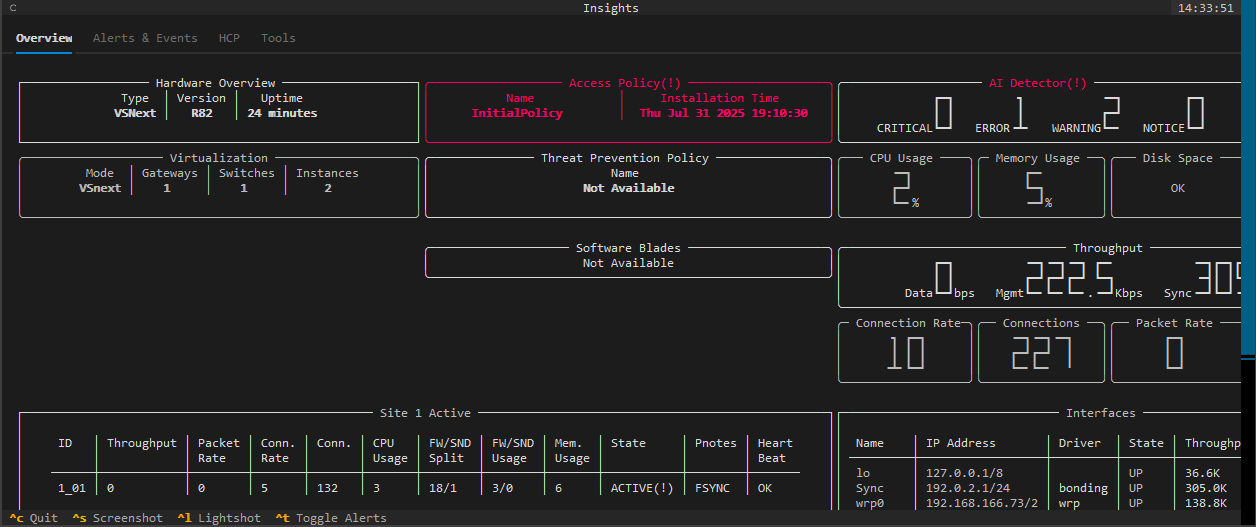 Figure 3: Active/Active Interface Configuration with Port-Channels
In Active/Active mode, both firewalls process traffic simultaneously:
- Port-Channel 99 (Po99) on both members
- VLAN 99: 192.168.99.2/24
- Bond Interface BO.99: 192.168.99.1/24 on VS-USER
- Physical Members: Eth1-08, Eth4 on both firewalls
- Sync Interfaces: Eth1/3, Eth1/4
Active/Standby Configuration
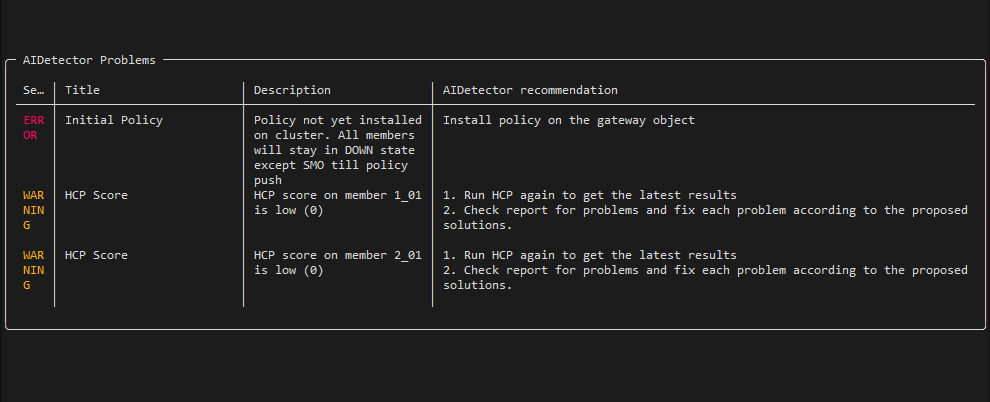 Figure 4: Active/Standby Interface Configuration with Port-Channels
In Active/Standby mode, traffic flows through the active member:
- Primary Port-Channel 99 (Po99) on active member
- Secondary Port-Channel 98 (Po98) on standby member
- VLAN 99: 192.168.99.2/24
- Bond Interface BO.99: 192.168.99.1/24 on VS-USER
- Physical Members: Eth1-08, Eth4
- Sync Interfaces: Eth1/1, Eth1/2
Key Configuration Commands
Setting Management IP
set interface Mgmt ipv4-address 192.168.166.73 mask-length 27
Configuring Default Route
set static-route default nexthop gateway address 192.168.166.65 on
Accessing Cluster Member Context
[Global] User-FW-s01-01:0> m 02_01
This command switches to member 02_01 context for member-specific configuration.
Best Practices
Cluster Design
- Use dedicated sync network: Separate synchronization traffic from production
- Size appropriately: Ensure both members have equal capacity
- Monitor actively: Track CPU, memory, and connection table usage
- Test failover: Regularly validate failover mechanisms
Virtual System Management
- Resource allocation: Properly allocate CPU and memory to each VS
- Interface assignment: Carefully plan physical-to-virtual interface mapping
- Policy segregation: Maintain separate policies for different virtual systems
- Monitoring: Track per-VS statistics and performance
Network Configuration
- VLAN design: Plan VLAN structure before implementation
- Port-Channel configuration: Ensure consistent Link Aggregation settings
- Spanning-tree: Configure portfast on access ports
- DNS redundancy: Always configure multiple DNS servers
Troubleshooting Tips
Cluster Status Verification
- Check cluster status in SmartConsole
- Verify synchronization state between members
- Review cluster logs for errors
- Test failover manually
Common Issues
- Sync network problems: Verify physical connectivity and VLAN configuration
- Policy installation failures: Check management connectivity to both members
- Performance degradation: Review resource allocation and connection table usage
- VS routing issues: Verify virtual system routing tables and interface assignments
Conclusion
Check Point ElasticXL and VSNext provide a powerful combination for building scalable, high-performance security infrastructure. ElasticXL simplifies cluster management while VSNext enables efficient multi-tenancy—all on a unified platform.
This setup provides:
- High Availability: Automatic failover between cluster members
- Scalability: Easy addition of cluster members as traffic grows
- Flexibility: Multiple virtual firewalls on shared hardware
- Performance: Optimized traffic processing in Active/Active mode
Whether you’re building a new security infrastructure or upgrading existing deployments, these technologies offer the flexibility and performance needed for modern networks.
Have questions about Check Point ElasticXL or VSNext? Feel free to reach out via LinkedIn or X/Twitter.